
/00/quick-guide
Running in four moves
Out of the box the ports are already set for Resolume and the most common addresses are enabled, so a first show needs only these four steps. Each links to the section that explains it properly.
Create a track with the +
Name it, or drop an audio file on it. Buttons and controls Tracks, time sources.
Put commands on the timeline
Record them in Rec mode while you jam, or create markers by hand with the orange + to make Command Markers+. The timeline.
Sync the labels, if you use Command Markers+
Right-click the timeline, Sync Command Markers, and Resolume’s columns link by name. Wait for the traffic light to go green. Command Markers+.
Go Live and arm the track
Two keys, both required: LIVE on the toolbar and the ⚡ lightning bolt on the track. The bolt is the master control — nothing leaves a track that is not armed, and nothing arrives into one either. Then press play and the other software follows every cue.
The app is built around security locks like this one. A single button could fire the wrong track when several share the same timecode, so the app asks for two deliberate actions instead.
Only two things sit outside that path. Open Settings if you run timecode, need a different port, or send to another machine; open OSC Addresses if you want to record parameters beyond the defaults.
The three modes at a glance
No button active. Neither records nor plays OSC.
Records incoming OSC from your other software.
Plays the timeline out to its targets. One track at a time.
Navigation
/01/setup-resolume
Setup with Resolume
Do this before anything else. OSC See and Resolume talk over two one-way channels, and each one needs a port opened on the receiving side. If the ports are not enabled and mirrored, nothing you program will arrive.
Open Resolume Preferences → OSC
Tick OSC Input so Resolume listens, and note its incoming port — 7000 by default. This is the port OSC See sends to.
Enable the OSC output in Resolume
In the same tab tick OSC Output, set the destination IP — 127.0.0.1 when both apps run on the same machine — and the outgoing port, 7001 by default. This is what OSC See listens to when recording a jam.
Turn on Output all OSC Messages
In Resolume, open Shortcuts → OSC and enable Output all OSC Messages. Without it Resolume sends nothing back and recording a jam captures nothing. In other software, enable its equivalent OSC feedback or echo option.
Mirror the pair in OSC See → Settings
Set the OSC See OUT port and IP to Resolume's input, 127.0.0.1 : 7000, and the OSC See IN port to the one Resolume sends on, 7001. Out here goes to In there, and the other way round.
Check the round trip
Arm a track, press Live and fire a cue: Resolume should respond. If nothing arrives, see Debugging OSC ports.
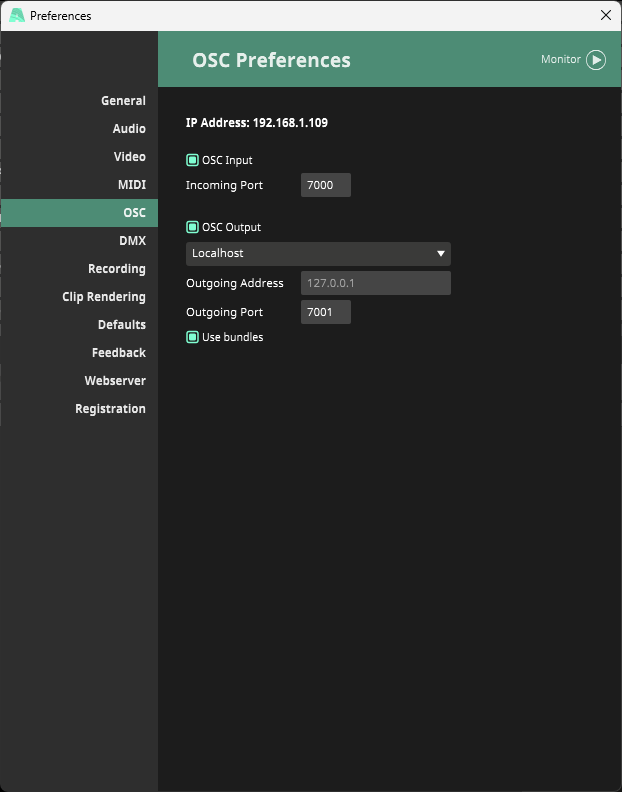
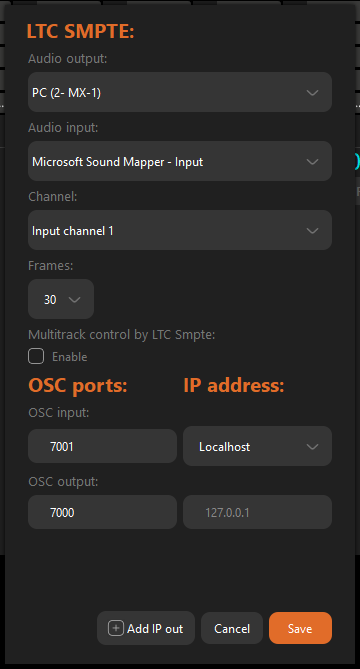
One IN port per app. On a single machine two programs cannot listen on the same incoming port. Give every app its own, and keep a note of which is which before the show.
Over a network, replace 127.0.0.1 with the other machine's LAN IP on both sides. Extra destinations — backups, render nodes, lighting — are added one IP and port at a time in Add IP Out.
Workflow recommendation: two Resolume preferences to turn off
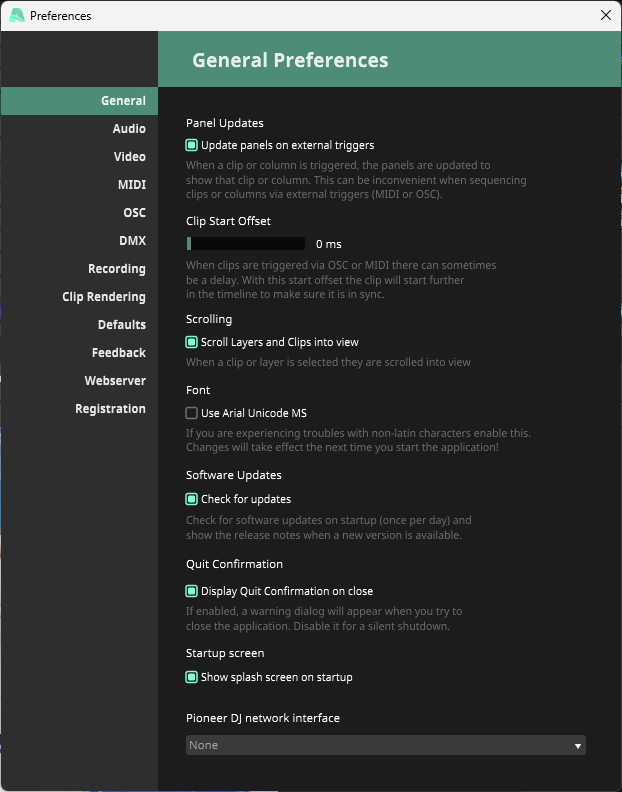
When Resolume is driven over OSC, its interface follows every trigger: the panels redraw on the clip that was fired and the grid scrolls the layer and column into view. During a cued show that means the window is moving on its own while you are trying to work in it.
In Resolume, open Preferences → General and uncheck Update panels on external triggers and Scroll Layers and Clips into view. The triggers still fire, only the interface stops chasing them.
/02/overview
A timeline editor for OSC commands
OSC⚡See connects to any software that speaks OSC. Communication needs three things: an input port, an output port and an IP address — localhost for apps on the same machine, or a custom IP anywhere on the LAN.
From there you build tracks. A track is a timeline where keyframes and commands control the other software: record them live from your favourite app in Rec mode, or create them by hand in the track editor.
Two keys to communication
With the ports set, nothing is sent or received until two switches are on. Both, every time.
Rec or Live on the toolbar
With a track created, click Rec to capture or Live to play back. In Neutral the app sends and listens to nothing.
Arm the track with the bolt
Arm the track that records or plays the sequence. This is what stops another track firing its commands.
In Multitrack arming is not needed — every track is active at once under timecode. Give each one a different offset so they do not overlap.
On the Resolume side. Activate OSC input and output in Shortcuts and enable Output All OSC Messages. Without it the traffic is one-way and Command Markers+ cannot sync back. More in Debugging OSC ports.
/03/main-window
Deliberately plain
On first launch the window is nearly empty, because everything happens inside tracks and none exist yet. Under the logo sits the configuration menu — audio, ports, the project's OSC addresses, the online manual and licence information. The File menu holds new, open, save and the shortcut list.
The toolbar: Add, Rec, Live, master timecode, source selector.
The menu bar
Three menus, at the top left of the window.
Import Tracks is the one worth knowing. It merges the tracks of another project into the one you have open, instead of replacing it — so a setlist can be assembled from several files, or a track built on another machine can be brought in.
/04/buttons
Buttons and controls
Every control in the window, in the order you meet them. Most are one click; a few change behaviour when you hold them down.
Creates a new track. Everything else in the app happens inside one.
Opens the track to reveal the timeline editor and its waveform, or collapses it again. Collapsed is the show state.
 ARM
ARMThe most important button in the app. Only an armed track controls other software or records. Productions often share one SMPTE time across many tracks, and arming is what stops the wrong track from firing. Orange means armed.
 AUDIO
AUDIOLoads a WAV or MP3 into the track, with waveform and zoom for precise editing. Those files can be played out of the app during a show, which is useful at corporate events. On macOS, WAV only.
Type any name. Loading audio fills it with the file name, which you can then edit.
 BACK TO START
Returns the playhead to the beginning of the track.
 SKIP BACK
Jumps ten seconds back per click. Hold it and the timeline reproduction slows down. Useful for lining up a live programme with no SMPTE.
 PLAY / PAUSE
Starts and stops the track. Green while running.
 SKIP FORWARD
Jumps ten seconds forward per click. Hold it and the timeline reproduction accelerates.

 LOOP
LOOPRepeats the track indefinitely. Orange while active.
 DELETE
Removes the track.
Sits to the left of the waveform on an expanded track. If the view has drifted away from the running playhead, double-click it and the timeline jumps back to the current position.
Bottom right. Keeps the window above the other applications; the icon closes into a loop while it is on.
Address, Value and Time
The three fields under the waveform hold the selected keyframe: the OSC address it sends to, the value it carries and its timestamp on the timeline. All three are editable, and filling them writes the command.
In Rec mode the parameters are written in with their values as you play. Nothing is locked afterwards: drag a keyframe with the mouse to move it in time, or edit any of the three fields by hand.
/05/tracks
Tracks are the setlist
A new track appears collapsed, with its controls in a row. Collapsed is the show state: you can drive the whole setlist without opening a single editor. Drag tracks to reorder them, rename any of them inline, and give each its own time source and offset.
Two collapsed tracks. Top one armed — bolt orange, green connection dot.
The ID column
Every new track is given an ID automatically. That ID is the suffix Command Markers+ appends to the column names it writes in Resolume, which is how each track finds its own columns.
You can edit an ID afterwards, but the columns already in Resolume still carry the old suffix — the link breaks. Sync the markers again and the names are rewritten to match.
Each control in that row is described one by one in Buttons and controls.
Arming is what matters. A track that is not armed neither sends nor records, whatever else is set. Productions often share one SMPTE time across many tracks, and arming is what keeps the wrong one from firing.
/06/time-sources
SMPTE, File or Free
Each track is driven by one of three clocks, and you can switch between them at any time. The usual route is to build the cues in File mode against a waveform, then put the same track on SMPTE so it runs at exact show time.
The per-track source selector.
Linear timecode arriving as audio: hours, minutes, seconds and frames, the standard reference for frame-accurate sync in film, TV and live work. Assign the audio input and the project FPS in Settings first, or nothing arrives.
An audio file defines the timeline and its duration. Load WAV or MP3 with the music-note button and place cues against the waveform.
An internal clock with no external reference, and looping if you want a cyclic sequence. This is the mode for installations and autonomous corporate scenes; free tracks are infinite unless you set a total time.
Every track carries its own SMPTE offset — click anywhere in the time field and adjust it — so a timeline programmed once lines up with wherever the song sits in the setlist.
/07/ltc-smpte
LTC is data, not audio
Linear timecode is a time reference encoded into an analogue waveform. Any distortion, processing, contamination or wrong level can corrupt it, and the result is sync instability, frame misreads, drift, dropped lock or a decoder that fails outright.
Checking the LTC waveform is mandatory before every show. LTC always sounds like noise — listening to it proves nothing. Use any DAW: free ones like Audacity or Reaper, Audition, or whatever you already work in — Ableton, anything that shows you the waveform.


Reference — proper LTC. Bi-phase mark encoded, symmetrical, strong and just below clipping. Top: 30 fps at 44100×24. Bottom: the same code at 48000×16, zoomed out.
Flattened tops. Bit transitions are altered — frame errors and jumping timecode.
Amplitude near the noise floor; zero crossings get lost and the decoder drops lock.
Schematics of the two level faults, against the reference above.
Strong, close to clipping, never clipped. The digital range to aim for is between -3 dBFS and -1 dBFS. To calibrate: raise the level until clipping appears, back it off until clipping disappears, and leave it just under the threshold.
LTC is a bi-phase mark encoded, square-like waveform. It must look sharp, clearly defined and symmetrical — no rounded peaks, no flattened tops, no amplitude wobble. Softened, compressed or filtered means something in the chain is processing it.
The three failure modes
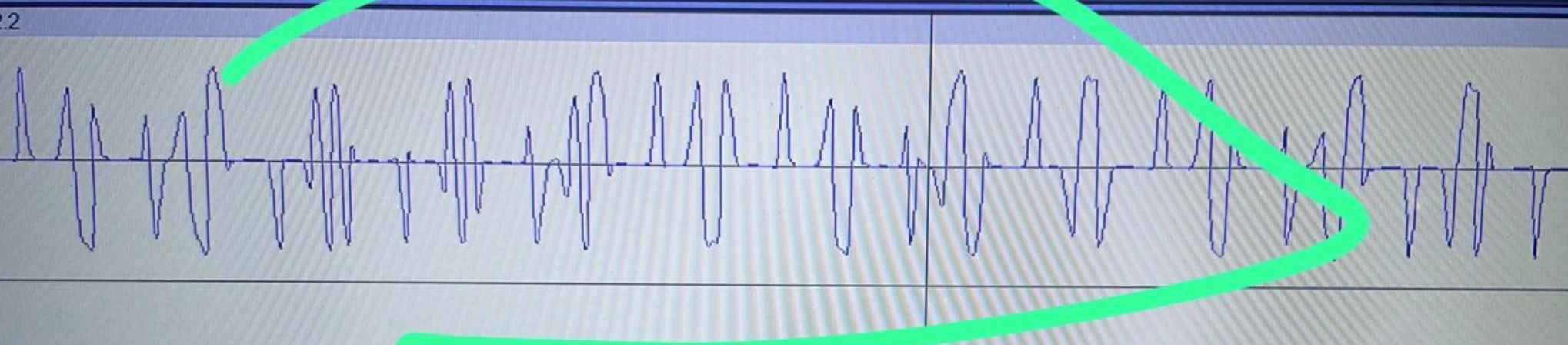
Contaminated LTC. The square structure is gone: asymmetric bursts, unstable amplitude and gaps at the zero crossing. This signal will not hold lock.
Verification procedure
The only reliable method is looking at the waveform, in Audacity, Audition or any professional DAW.
If it does not visually match the correct reference, fix the signal chain before you operate the show.
Routing for stable operation
Use line-level inputs and avoid mic preamps where you can. No compressors, no limiters, no EQ, no master bus processing, no unnecessary analogue stages. Keep the path direct and isolated, and never share the channel with a click track or guide audio.
Playback device (LTC out) → direct line input → OSC See machine
/08/settings
Audio, ports, addresses
Nothing works until Settings is configured. There are three groups: audio in and out, the OSC ports, and the destination IPs.
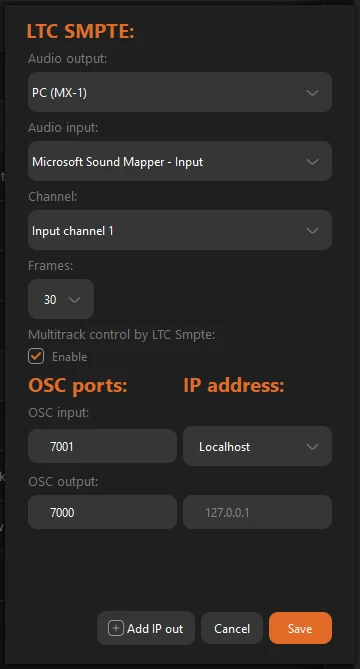
Everything in one dialog. Top: the LTC SMPTE block — audio output, audio input, the input channel carrying the timecode, the project frame rate, and the Multitrack control switch. Bottom: OSC input and output ports beside the IP address, with Add IP out for extra destinations.
Audio setup
Multitrack mode (LTC SMPTE)
Keeps every track active at once under timecode — no arming track by track. All tracks listen and execute, or not, by schedule.
Warning, as shown in the app. Enabling this option leaves only Live mode and the SMPTE source available. Rec mode, File and Free sources are disabled.
OSC communication
Mirror the ports between the two apps. If Resolume's input is 7000, this app must send to 7000. If Resolume's output is 7001, this app must listen on 7001.
On the same computer two programs cannot listen on the same UDP port. Give every app its own unique IN port to avoid binding conflicts. If OSC still misbehaves, go to debugging OSC ports.
IPs and Add IP Out
Use 127.0.0.1 for apps on the same machine, or a custom IP for any computer on the LAN, as long as the ports match. For redundancy, backups or a render farm, add several destinations: one IP and port pair per target.
Localhost or your own machine's IP both work — each receiving program still needs a different IN port. Resolume on 7000 and Notch on 7010 means two outputs: 127.0.0.1:7000 and 127.0.0.1:7010.
Add the target machine's IP and its IN port, for example 192.168.0.25:7000. Rule of thumb: one unique IN port per app on a given machine.
/09/osc-addresses
Presets, custom addresses, wildcards
This window is where address presets are added and configured. Presets are ready-made addresses for the programs people use most, so setting up communication takes a moment rather than an afternoon. Resolume presets cover columns, decks, clips, master, layer opacity and layer transition time, among others. Each address category carries a colour, which becomes the colour of its commands on the timeline.
Add as many presets as you like, or write custom addresses for anything not listed.
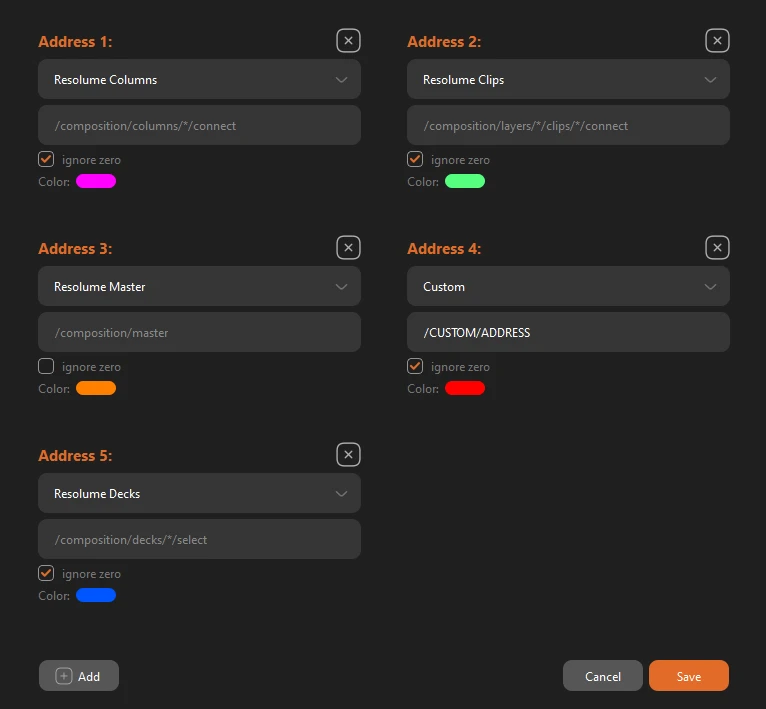
Five slots configured: Resolume Columns, Clips, Master and Decks from the presets, plus one Custom. Each slot carries a preset picker, its address path, an ignore-zero switch and the colour its commands take on the timeline. Add appends a slot; the X removes one.
Choosing the colour
Click the colour chip on any address and the system picker opens — the colour you choose is how you recognise that category on the timeline, so keep one meaning per colour.
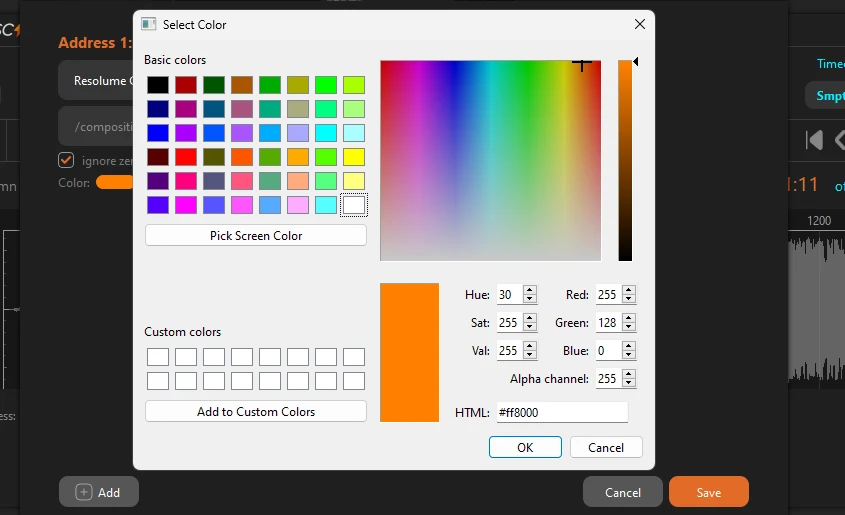
The picker open on Address 1. HTML field set to #ff8000 — the app's own orange.
Custom addresses
A custom address creates its own line of commands for one exact parameter, and its values are captured or emitted from there. In Resolume's addressing, the numbers name the layer and the clip:
/composition
Layer 1, clip 1 — that address sends and receives for that clip alone.
The asterisk wildcard
Replace a number with * and the address matches any index at that position, both when recording and when sending:
/composition
/composition
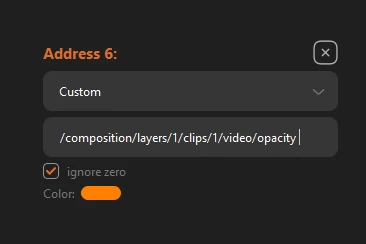 ONE CLIP
Layer 1, clip 1 only.
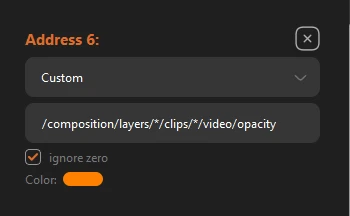 EVERY CLIP
The same address with both indexes replaced by * — every layer, every clip.
Address 6 before and after the wildcard.
The same trick works on commands already in the timeline: swap the index for an asterisk and the value goes to every layer or clip instead of one — a transition time sent to all layers at once, for instance.
If you set no presets at all
You can still add commands straight from the track with the white +, adding cues by hand from the live interface. The catch: without presets configured beforehand, those parameters cannot be recorded live.
Cues created with the + appear as a white triangle and can hold any comment or text, or you can write an OSC address manually — do not forget to set a value. Edit one to a preset address and it takes that preset's colour and position automatically.
Controlling OSC⚡See over OSC
The traffic runs both ways. OSC⚡See listens on its own address space, so another program — a console, a cue system, a second machine — can start a sequence without anyone touching the app:
/Oscsee
The number is the track to play — /Oscsee/3/play/ starts track 3.
Case sensitive. The address must be written exactly as above, with the capital O in /Oscsee. /oscsee/1/play/ is a different address and will be ignored.
/10/timeline
Where the show gets written
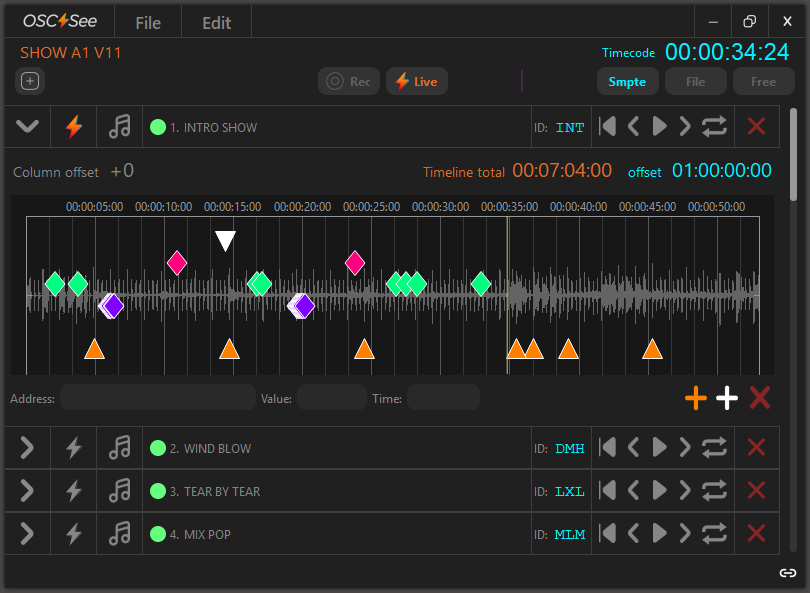
Ruler, waveform, cue diamonds and Command Markers+, with the two time fields.
Column offset
Resolume addresses its content by grid position, numbered left to right. When you add or delete columns, or copy a block to another Deck, the programming no longer lines up. Column offset shifts the numbering of a whole track by the amount you type — positive if content moved right, negative if it moved left — instead of editing every command by hand.
A block programmed at column 3 and later moved to column 8 needs Column offset +5. The offset is per track, temporary, and never changes the value stored in the command.
To change values permanently, edit the address box, or use Column Offset for selected commands from the Edit menu or the right-click menu — that one is destructive and rewrites the address index.
Timeline Total and Offset
Shortens the track in File or Free mode. Free tracks are infinite by default; type a total time and the track ends there.
Moves the whole timeline in SMPTE mode to match where the song sits in the setlist. Click any part of the time field to adjust; every cue and parameter follows.
Progress line per track V2.1.0
Each track now carries its own progress line, a bar that fills in green from 0 to 100% as the track advances, so the state of every track in the show is readable at a glance without opening it.
What counts as 100% depends on how the track is set up: the length of the loaded audio file, or the time typed in Timeline total, or — on a Free track with no audio and no total time — the last cue or marker on the timeline.
The line fills green in real time, from 0 to 100% of the track's reference length.
When the time runs out the last finished track blinks orange, and every track already played stays marked orange up to the percentage it reached.
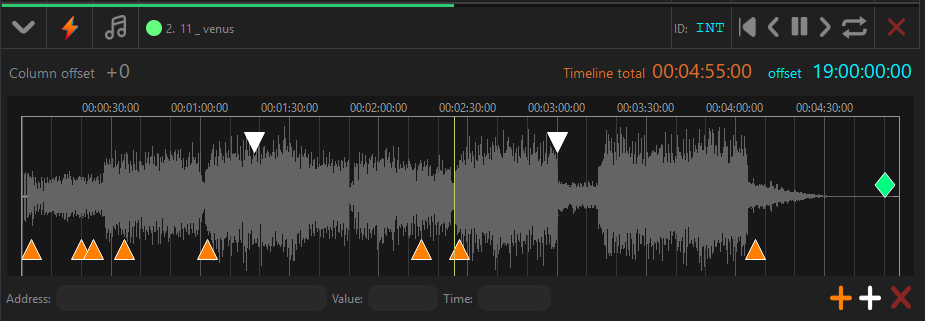
Editing and recording
Add, record, copy, cut and paste. Drag the mouse across commands to select a group, then delete them with the Del key or the X at the bottom right of the timeline.
In Rec mode, cues are written to the timeline automatically while you jam in Resolume, each command filed under its address category and coloured accordingly. Recent versions ship with the common addresses enabled — columns, clips, decks and layer opacity; anything else has to be added in the OSC Addresses window first.
Creating commands by hand
The white + at the bottom right does not create a command — it creates a marker holding nothing but a label. On its own that label does nothing: it is a note on the timeline, useful for marking Intro, Chorus or a cue for another department.
What you write in the address box decides what the marker becomes. Type an OSC address and it turns into a command that fires like any other. Put an asterisk * in front of the label instead and it becomes a Command Marker+, linked to a Resolume column by name.
Text only. Nothing is sent — it marks a moment for whoever reads the timeline.
Write the OSC path by hand and the marker sends it. Addresses typed here do not need to be enabled in the OSC Addresses window — that filter governs recording, not manual commands.
A leading asterisk promotes the label. Sync Command Markers+ then creates or links the Resolume column that carries the same name.
The three states are not permanent. A white marker becomes an orange one by adding the asterisk, and goes back to white by removing it — the label survives either way.
Address, Value, Timestamp
Every command shows three boxes at the bottom of the timeline. The address box takes an OSC path, or plain text if you are using the marker as a note — show directors use that to leave instructions for the visuals, laser or lighting teams.
The value box accepts strings, integers, floats and none, and the right OSC message type is assigned automatically. Some address kinds behave differently: none needs no value at all, while floats and integers depend on it.
The one case where you declare the type yourself is a numeric string. To show a number as text in a Resolume text block, wrap the value in quotes:
/composition
Value: "888"
/11/command-markers-plus
Command Markers+ Labels that execute
Turn timeline labels — Intro, Chorus, Drop — into executable commands for Resolume. Name the cue here, then Sync Command Markers links it to a Resolume column by name. You programme concept-first and fill the content in later, with no column numbering and no re-mapping.
Command Markers+ is Resolume-only. General OSC still works with any OSC-capable software.
White plus, orange plus
Standard marker — a label, nothing else.
Command Marker+ — command-capable for Resolume.
Shape carries meaning: diamonds are cues, orange triangles Command Markers+, the inverted white triangle a standard marker.
Quick start
Traffic light — sync status per track
Column scanning runs at controlled intervals so the OSC channel to Resolume never saturates. After the first sync, give the status one or two minutes to settle.
Super important. In Live mode, click Live on the toolbar and arm the track with the lightning bolt. That is what prevents a different SMPTE-aligned track from firing its commands.
/12/right-click
The context menu holds the advanced tools
Right-clicking the timeline is where markers and commands get edited in bulk, exchanged with other systems, and synchronised with Resolume.
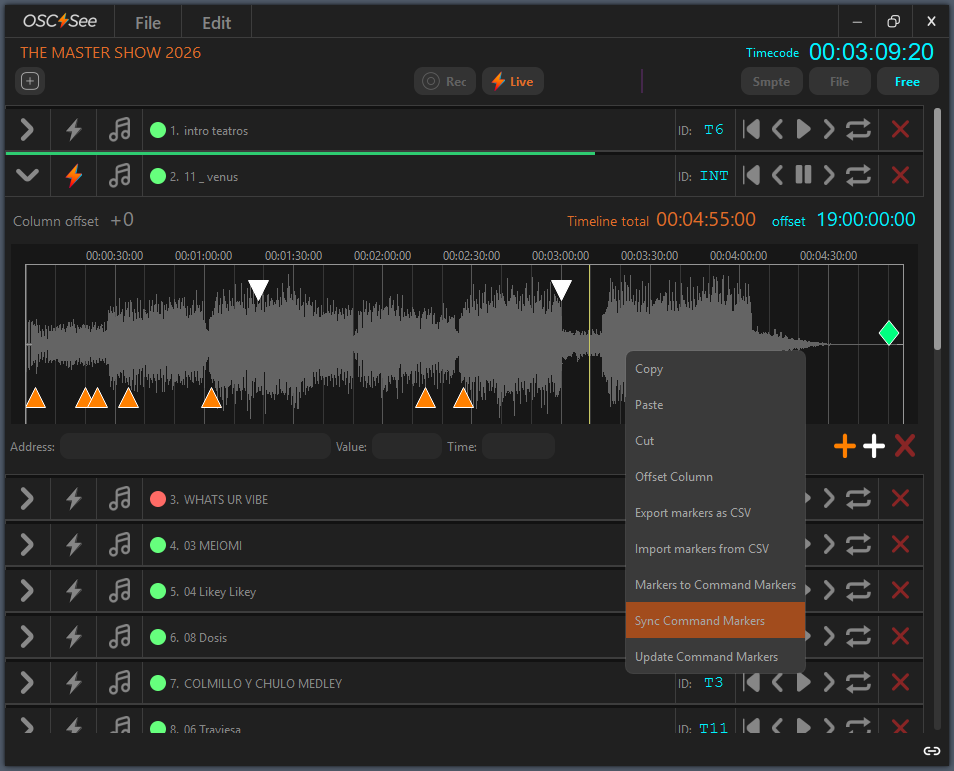
The seven timeline commands, Sync Command Markers highlighted.
Copy, paste, cut
Standard timeline editing on the selected keyframes, commands or markers; paste lands at the cursor.
Offset Column
Permanently adds or subtracts a value from the column index of the selected items only. The track-level Column offset, by contrast, shifts everything and is temporary. Useful for reorganising recorded Resolume commands without recording them again.
Export markers as CSV
A dialog asks what to export: Command Markers+ only, standard markers only, or both. The file carries the timecode, the label and the marker type, exactly as the timeline stands at that moment.
Beyond moving markers between projects, this is how other departments reuse the timing structure — lighting consoles, laser systems, show control, anything timecode-based.
Import markers from CSV
You tell the importer which column holds the marker text and which holds the timecode, so files from DAWs, spreadsheets and other marker systems all work.
Markers to Command Markers+
Promotes text-only markers to executable ones — the usual next step after a CSV import. Once converted they execute commands, sync with Resolume by label, and join the command marker synchronisation workflow.
Sync Command Markers
The app connects to Resolume and asks for the starting column number. Cue markers are then created in sequence — three markers starting at column 10 become columns 10, 11 and 12 — and a Track ID is generated, which you can edit.
The traffic light then reports the state of the sync.
Update Command Markers
Re-syncs only what is missing — markers deleted in Resolume, markers added here after the first sync. It asks where to start, regenerates one column per missing marker, and re-checks the traffic light without duplicating what already exists.
/13/debugging
When nothing arrives
Port trouble on Windows and macOS usually comes down to another program holding the port, or a previous session that did not close cleanly and left a process behind. If commands are not arriving, configure the OSC addresses first — then work through these.
Put OSC See in REC or LIVE
Nothing is sent or recorded while the app sits idle. Put OSC See in REC or LIVE and activate a Track with the ⚡️or Multitrack.
Turn OSC on in the other software
In Resolume, activate OSC in Shortcuts and set the output to Output All OSC Messages. By default Resolume sends nothing. Custom OSC messages can be enabled in the same place.
Check for port occupation
Make sure no other program holds the OSC ports. Change the port numbers, or close the other app — restarting everything in the pipeline is the reliable move.
Close the app properly
An improper exit can leave the ports occupied. Quit cleanly, then look for leftover processes: Task Manager on Windows, Activity Monitor on macOS. Kill anything OSC-related you find.
Remove the preferences file
If it still misbehaves, delete the preferences:
C:\Users\User\AppData\Roaming\OSC SEE
/Users/user/Library/OSC SEE
/14/tips
Habits that pay off on show day
Check the traffic light is green before doors. Amber means missing or duplicate names; red means not synced, or the wrong Deck.
Pin the app frontmost so the transport and status stay in sight through rehearsals and the show.
Add several destinations at once: localhost or your own IP for local apps, plus LAN addresses. One unique IN port per app, always.
On a SMPTE show where audio plays elsewhere, move the audio folder before opening the project. The app skips loading it and opens immediately, keeping every track, marker and Command Marker+. Put the files back when you need playback again.
Windows performance
Raise the app's CPU priority in Task Manager: open it with Ctrl + Shift + Esc, go to Details, right-click the OSC See process, Set priority, and choose High. Realtime is for dedicated show machines and advanced users only. Confirm the warning Windows shows.
Windows does not remember the priority — set it again after every restart of the app.
For maximum stability in professional environments: close browsers and anything unnecessary, disable the antivirus for the duration of the show, set the Windows power plan to High performance, turn off automatic updates during events, and where possible dedicate a machine to the app alone.